How Contractors Scan a QR Code
 Updated
by Leo Comia
Updated
by Leo Comia
Overview
The company QR code is generated in HSE Connect Settings and displayed at the workplace for contractors to scan when arriving or leaving a site.
To locate the QR code:
- Log in as an HSE Manager or Administrator
- Go to Users & Settings
- Select Settings
- Scroll down to QR Code
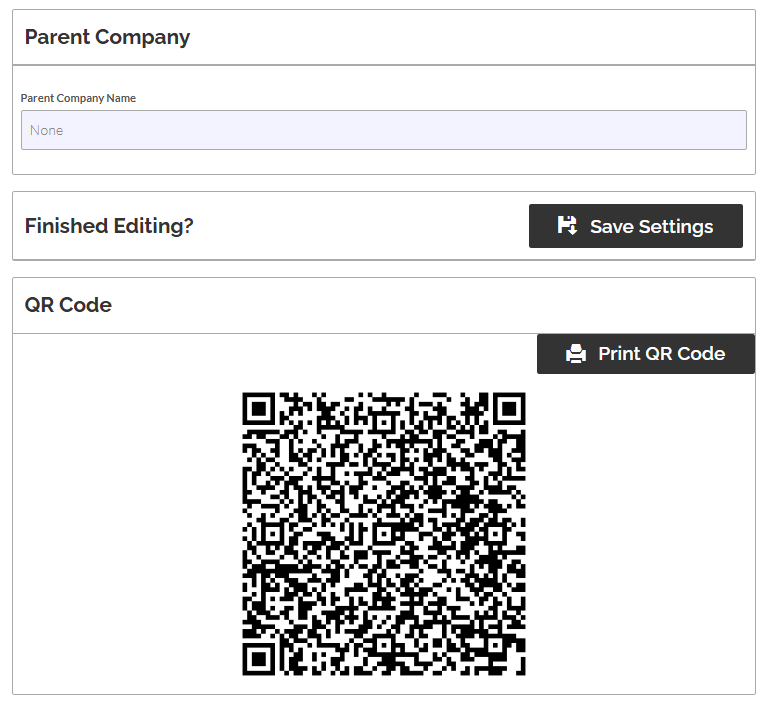
The QR code can be printed or displayed at site entry points, reception areas, or induction boards so contractors can easily scan it when entering or leaving the workplace.
Only users with a Contractor profile in HSE Connect have access to the QR code scanning feature in the mobile app. If a user is not assigned the Contractor role, the QR scanner will not appear in their profile.
How Contractors Scan the QR Code
Contractors must use the HSE Connect mobile app to scan the company QR code to Scan In and Scan Out of a site.
Before You Start
Contractors must:
- Have the HSE Connect mobile app installed
- Be logged in to their HSE Connect account
- Be able to see the QR code displayed at the workplace
Steps to Scan
- Open the HSE Connect app on your mobile phone.
- Ensure you are logged in to your account.
- Open the QR scanner within the app.
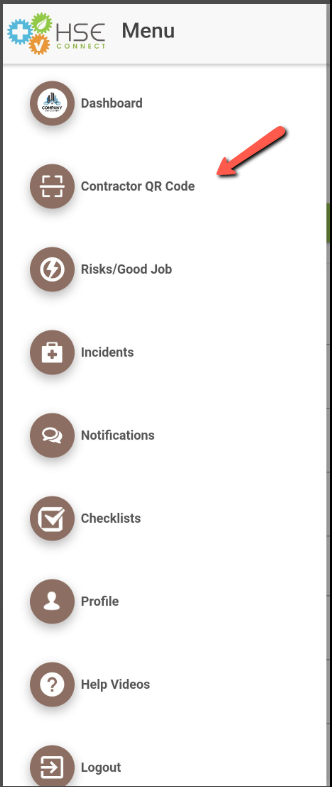
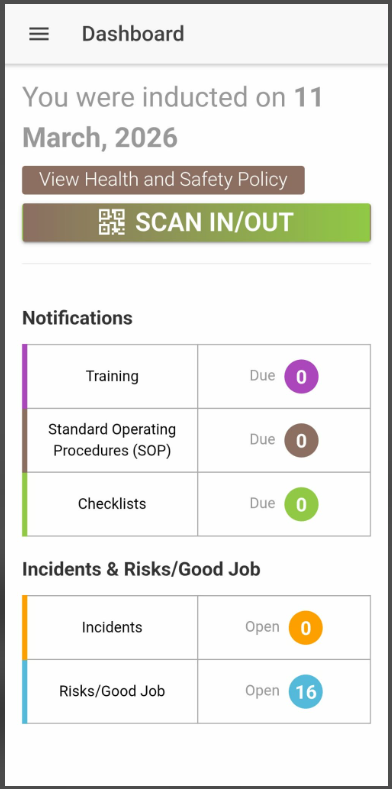
- Point your phone camera at the company QR code displayed at the site.
- The system will automatically register your action as either:
- Scan In (when arriving on site), or
- Scan Out (when leaving the site).
Once scanned successfully, your attendance will be recorded in the system.